
Notes, revision and questions
What you hear, read and write stays together and comes back when you need it.
Every note tied to its lesson, teacher, book, page and minute, with revision that returns at the right time.
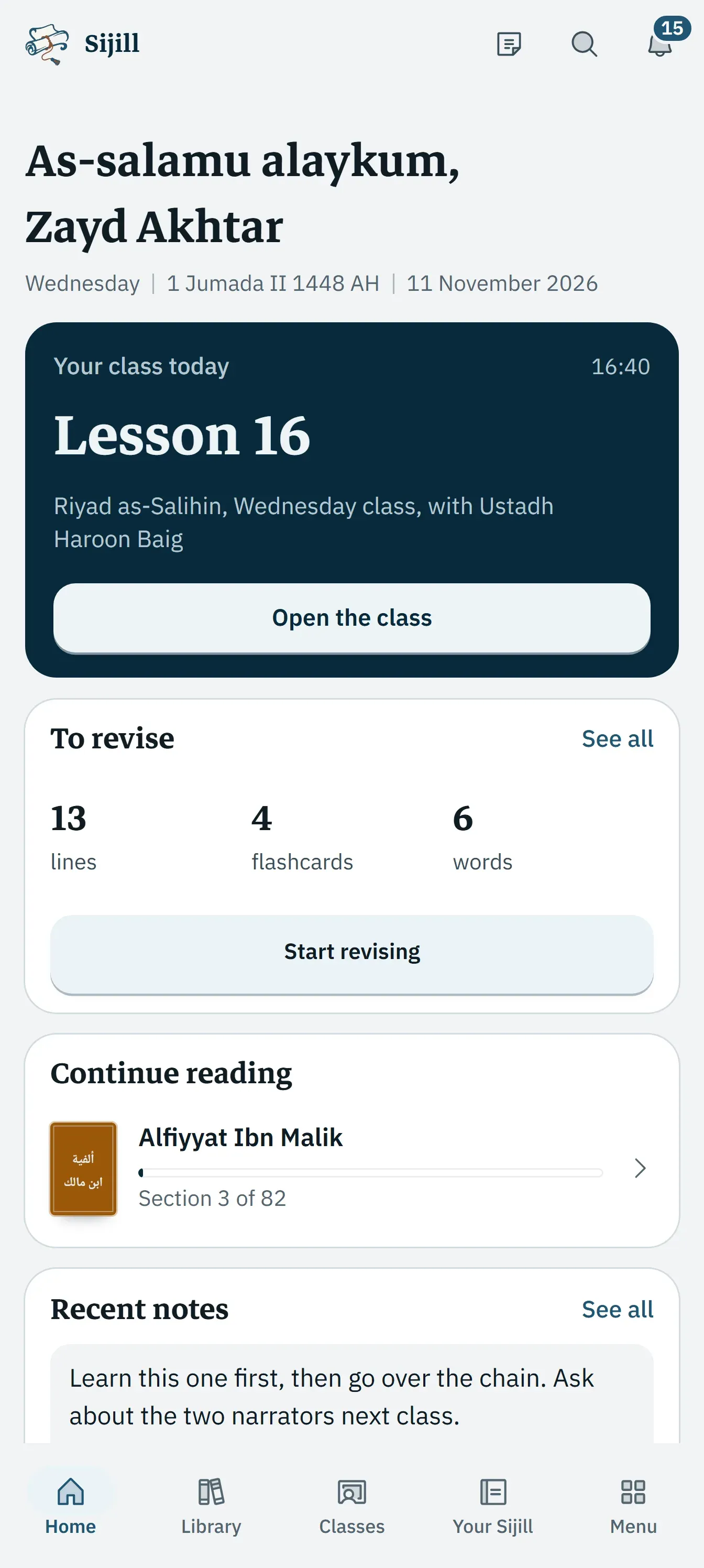
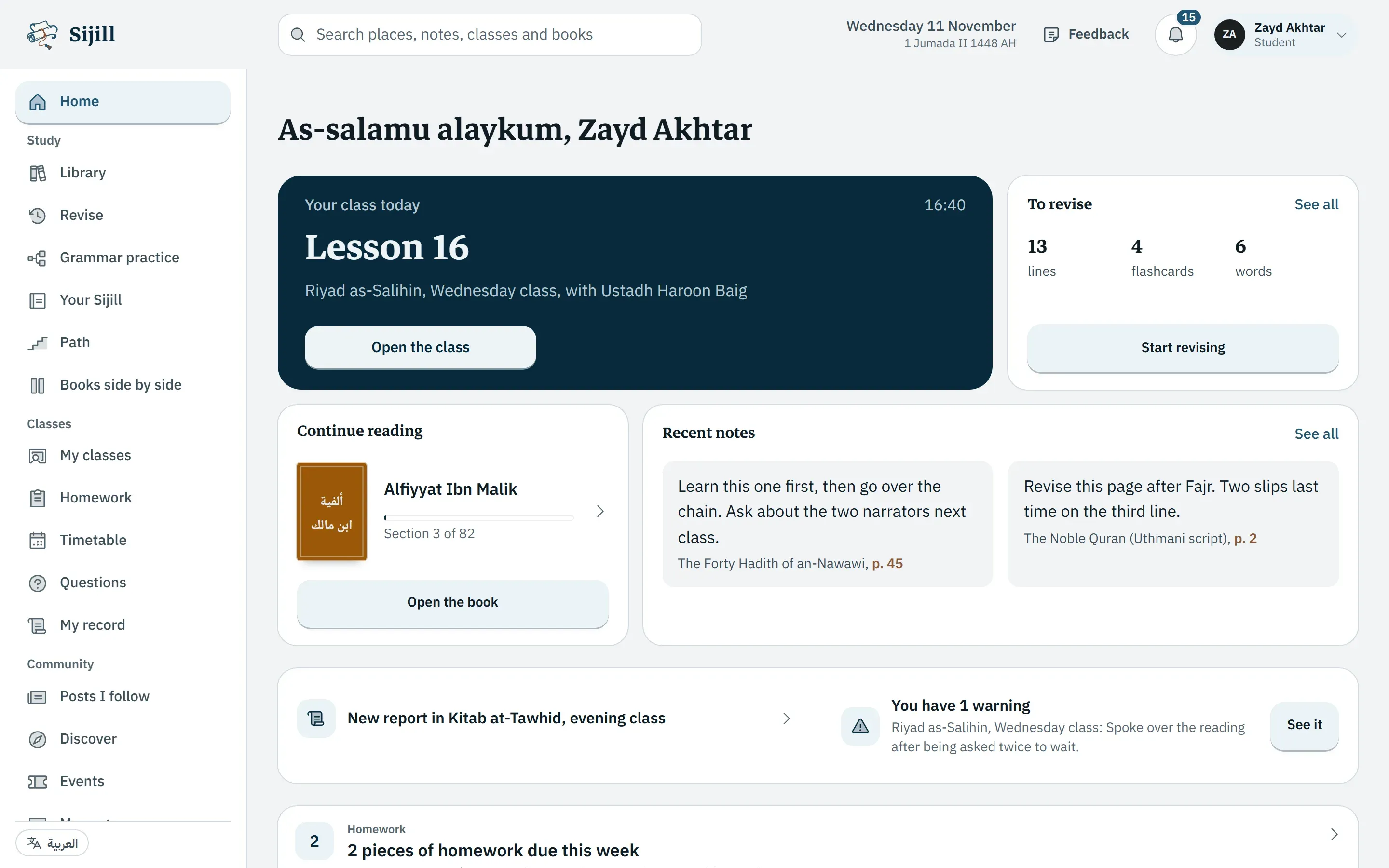
What it does
A note in Your Sijill is tied to the lesson, the teacher, the book, the page and the minute of the recording it came from. Your own words are always kept apart from the words of the sources and the scholars, so you can tell at a glance whose they are.
For revision, a student builds decks and Sijill brings the cards back at spaced times, with four ways to practise. A student can send a question to a teacher, which is private by default, and the teacher’s answer can point to the minute of the lesson where it was given.
How we did it
A note is stored with its source from the moment you write it, so there is nothing to tag afterwards. Administrators cannot read notes, questions or revision. That is not a setting but how the app is built.
Built today / Coming, not live yet
Built today
- Notes tied to the lesson, teacher, book, page and minute.
- Decks and spaced revision, with four ways to practise.
- Questions to a teacher, private by default, with answers tied to the minute.
Coming, not live yet
- Revising by voice is not built.
- The starter study paths are drafts that have not been offered to students.
Inside the app
A short drawing of how this part works, one step at a time. The screens come after it.
A note remembers where it came from
It is tied to the lesson, the teacher, the book, the page and the minute.
Revise with decks
Spaced revision brings a card back after longer and longer gaps, with four ways to practise.
Ask a teacher
A question is private by default, and the answer is tied to the minute it refers to.
Screens
Scroll sideways to see every screen.
The home page of a student: the class today, what to revise, the book to carry on with and the latest notes. 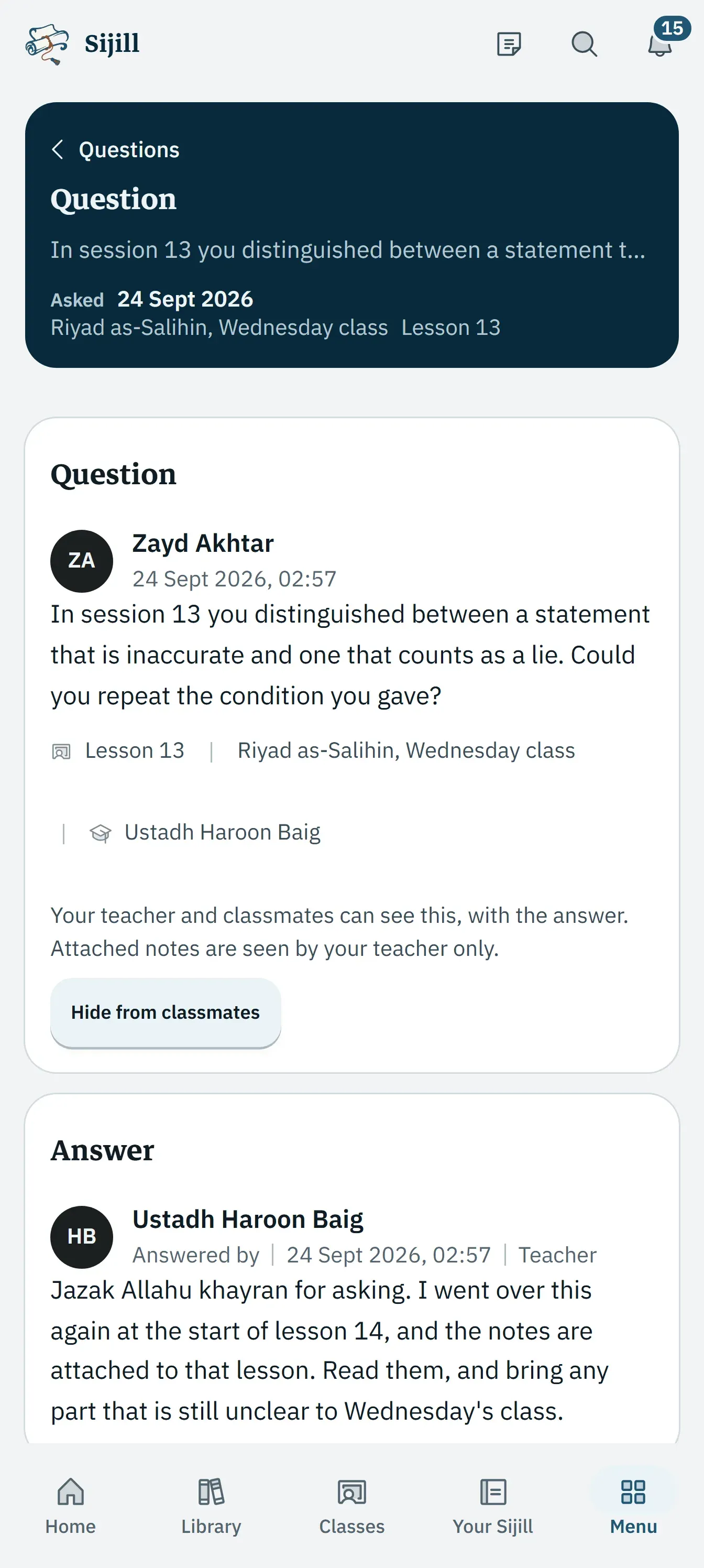
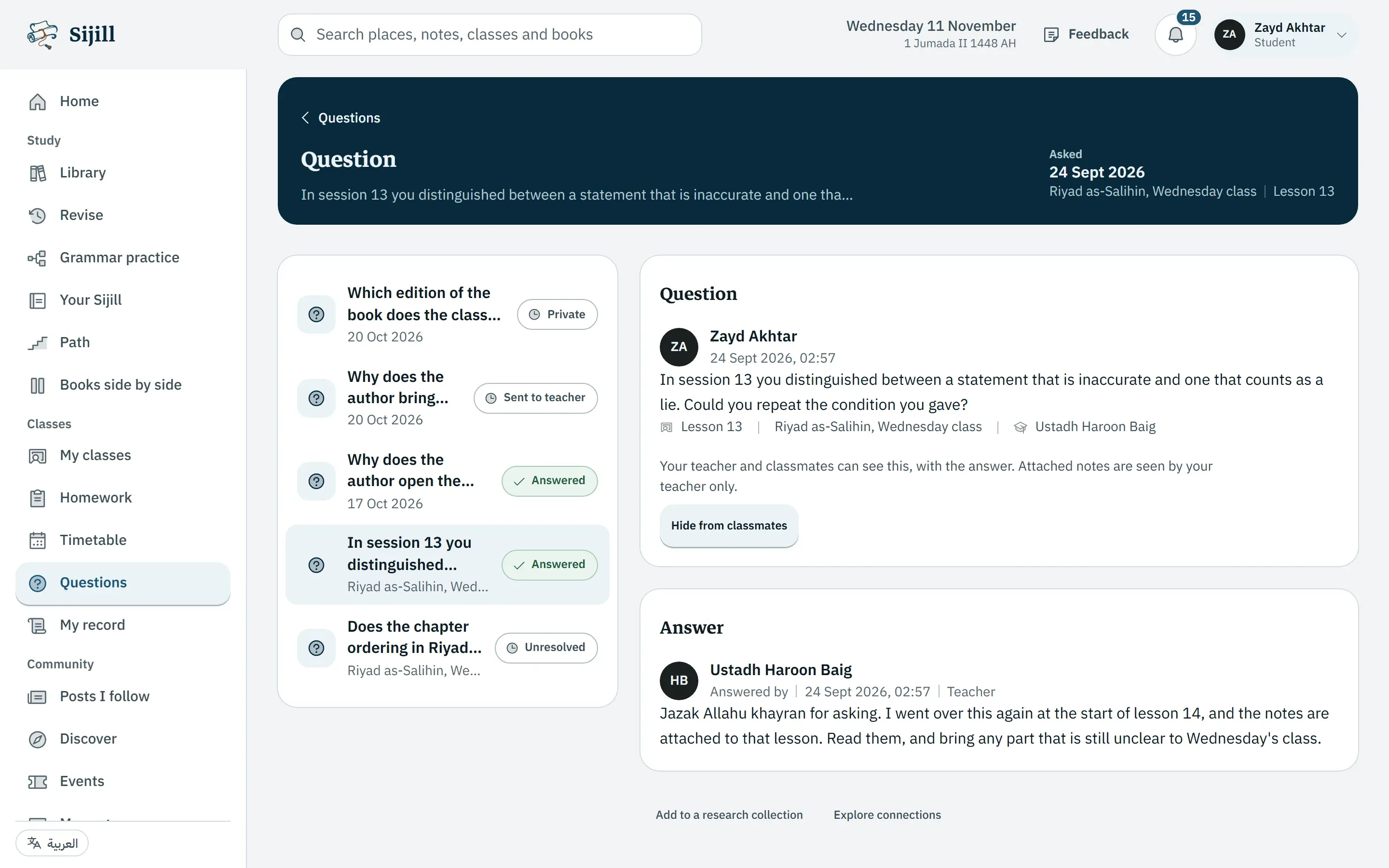
A question asked in a lesson, tied to that lesson, with the teacher’s answer beneath it. 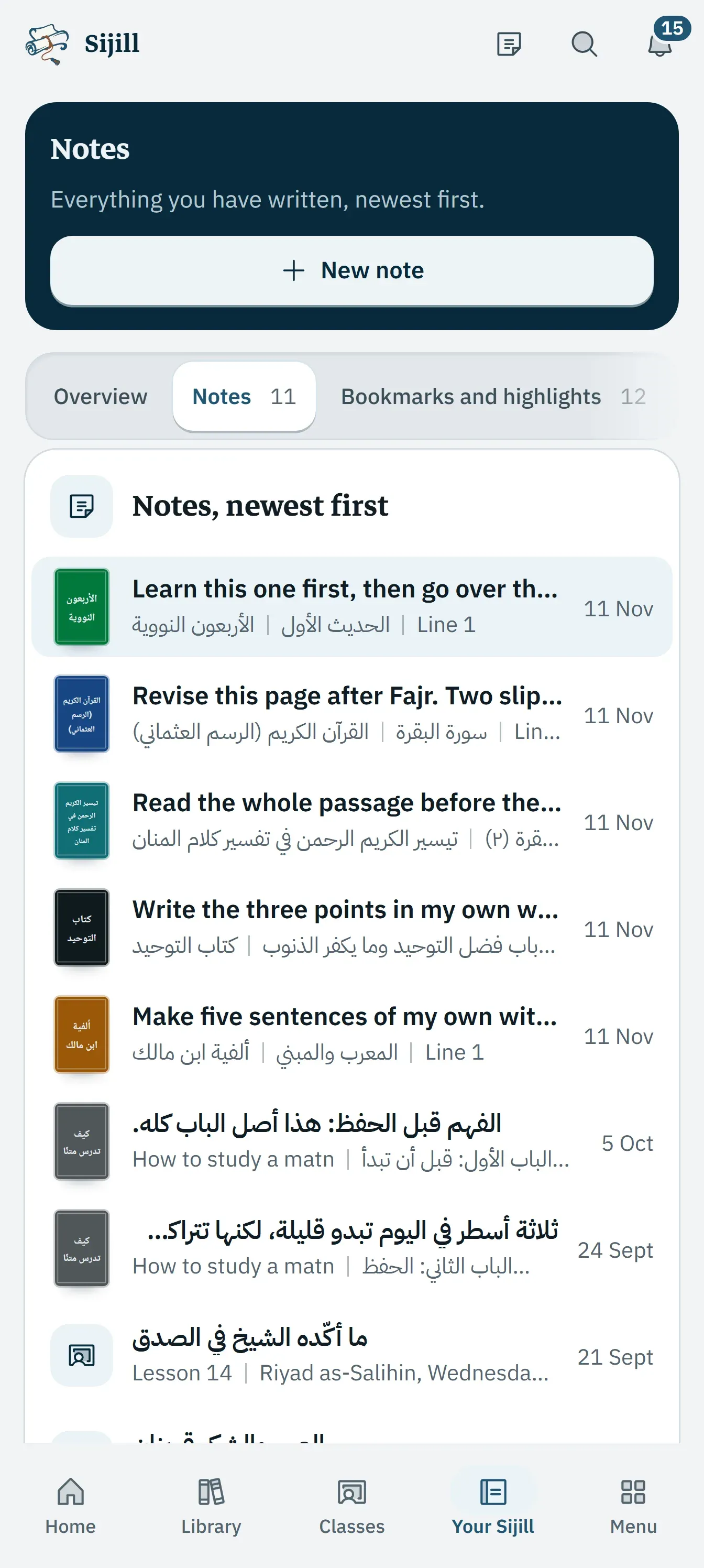
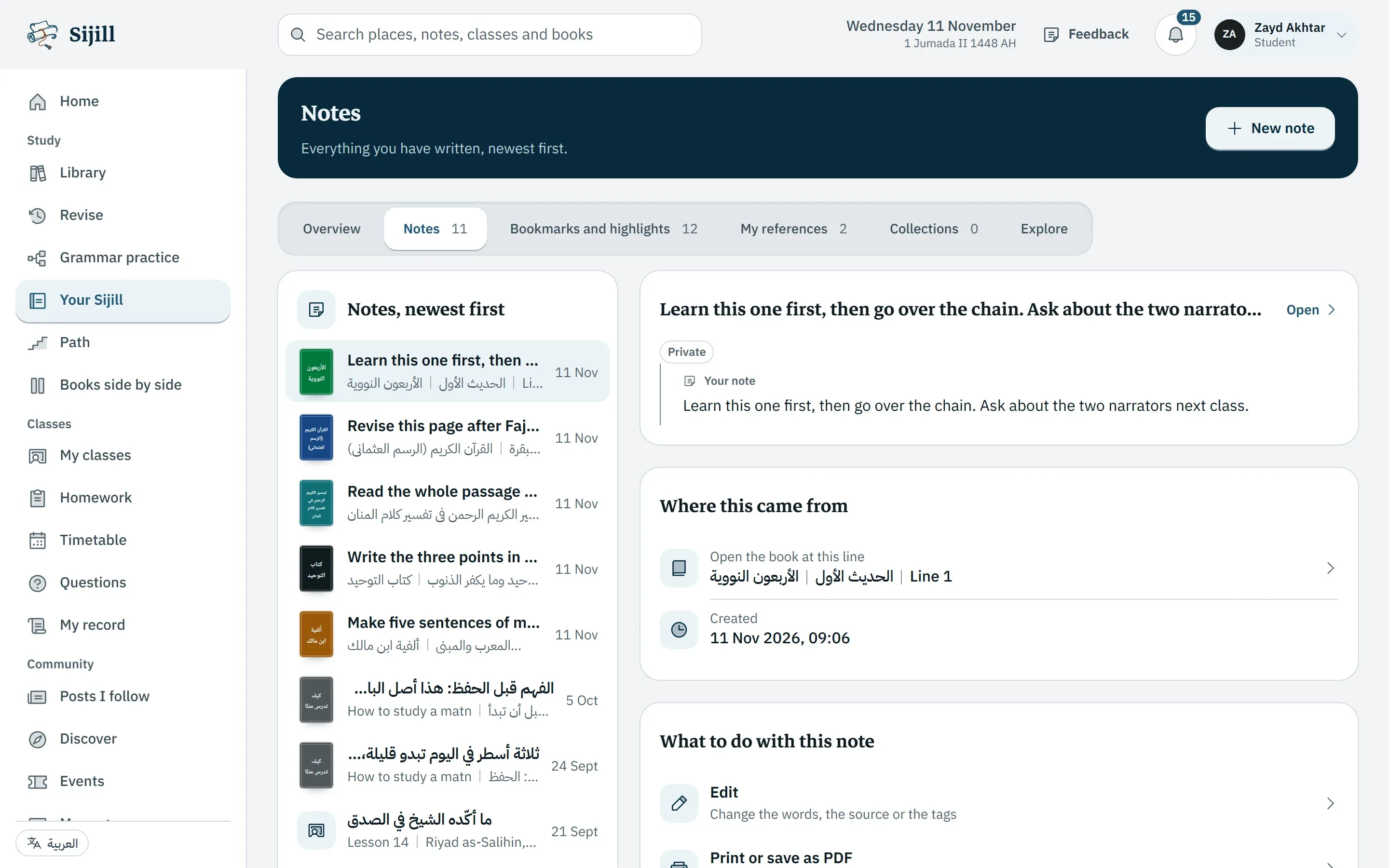
Your notes, newest first. Each stays tied to the book and the lesson it came from.
The pictures on these pages come from developer copies of the app with stand-in people and sample notes. They are not a real student’s account.
The other subjects
The library and the reader
More than a hundred books to study from, read one section at a time, with your place kept and your own notes beside the text.Read the deep diveHadith and narrators
The six books, the Muwatta and the Adab al-Mufrad, with a card for every narrator that carries the critics’ own words.Read the deep diveThe Quran
The text of the Quran from Tanzil, a card for every word, similar verses, and decks for memorising.Read the deep diveTafsir
A study panel that puts the tafsirs of an ayah side by side, with your own notes and your teacher’s.Read the deep diveCreed, fiqh and usul
Twenty-three books of creed, twelve of fiqh and three of usul, with study paths, and no rulings of our own.Read the deep diveArabic and grammar
Eight grammar books, a card and a root search for every word of the Quran, and a place to practise i‘rab.Read the deep diveThe seerah and the people
The lives of the authors from the books’ own words, a timeline of sixty-four events, and a map that waits for places we can stand behind.Read the deep diveLive classes
A class room that Sijill hosts itself, with the book beside it, notes tied to the minute, and a record of where the class got to.Read the deep diveTeachers, classes and institutes
Join codes, a session log, attendance, homework and grading, certificates that anyone can check, and a view for families.Read the deep dive